> ## Documentation Index
> Fetch the complete documentation index at: https://docs.ticketcord.com/llms.txt
> Use this file to discover all available pages before exploring further.
# Installation
> Create your Discord bot and connect it to TicketCord
## Prerequisites
Before you begin, you'll need:
* A Discord account
* **Manage Server** permission on your target server
* A Discord bot application (we'll create this below)
## Create a Discord Application
Visit [discord.dev](https://discord.dev) and sign in.
Click **New Application**, enter a name, and click **Create**.
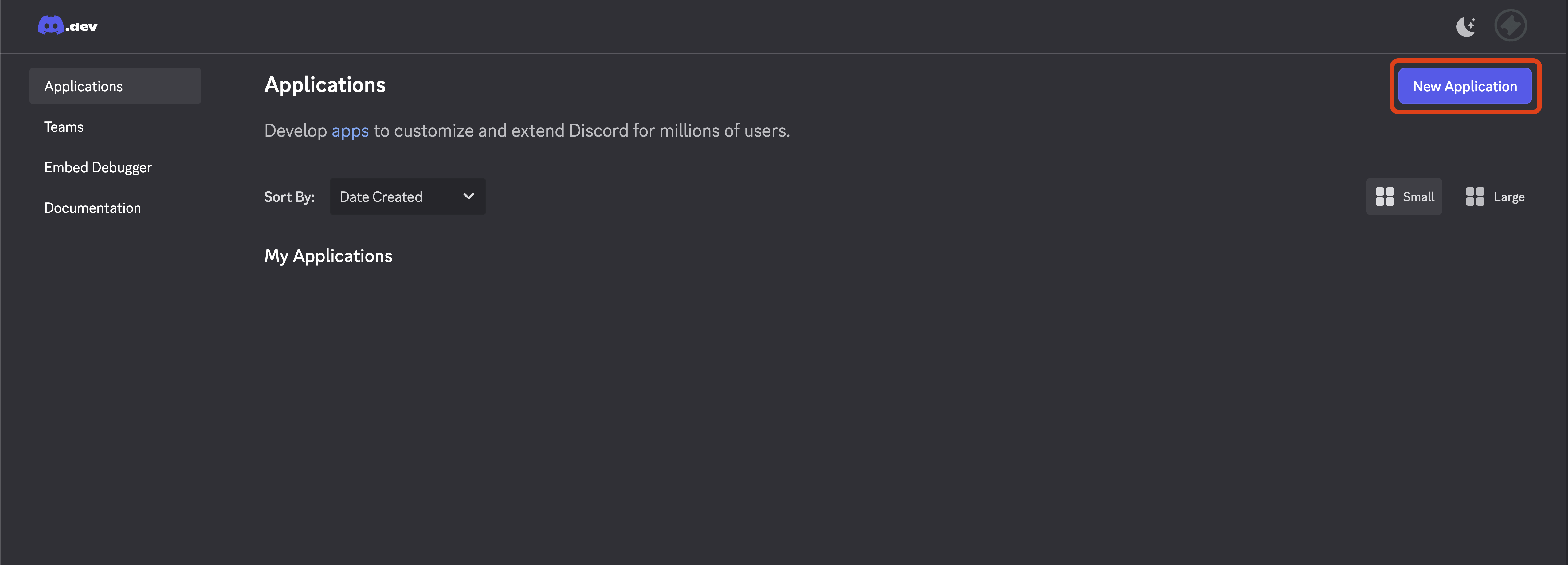 Go to the **Bot** tab and click **Add Bot**.
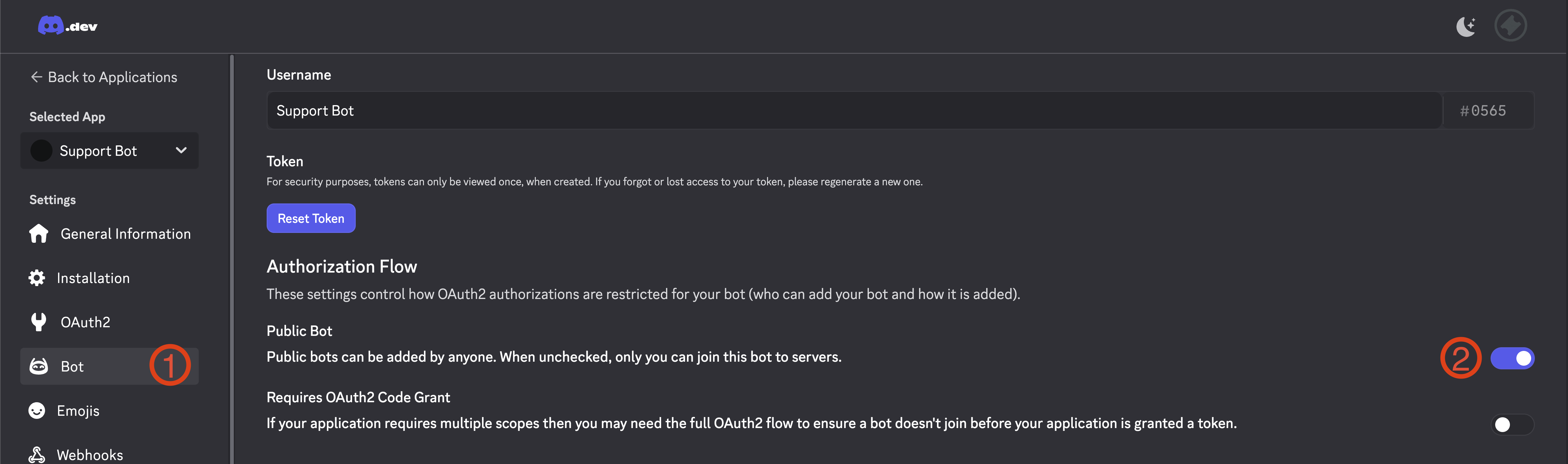
In the **Bot** tab, find **Public Bot** and **turn it OFF** (toggle should be gray, not blue). This prevents others from adding your bot to their servers.
Make sure the toggle is **disabled** (gray). The image below shows where to find it - click the toggle to turn it off.
Go to the **Bot** tab and click **Add Bot**.
In the **Bot** tab, find **Public Bot** and **turn it OFF** (toggle should be gray, not blue). This prevents others from adding your bot to their servers.
Make sure the toggle is **disabled** (gray). The image below shows where to find it - click the toggle to turn it off.
 In the Discord Developer Portal, open your application's **Bot** page and enable these under **Privileged Gateway Intents**:
* **Server Members Intent**
* **Message Content Intent**
Discord requires you to enable these yourself — TicketCord cannot turn them on for you. If they're off, your bot can't connect and Discord reports a "disallowed intent" error (code 4014).
Don't disable these later. Turning them off will break your bot until they're re-enabled.
Click **Reset Token** and copy the token. You'll need this for TicketCord.
Keep your token secret! Anyone with your token has full control of your bot.
If you reset your token after adding the bot to TicketCord, your bot will go offline. To fix this, go to your bot in the dashboard and click **Update Credentials** to enter the new token. The bot will automatically restart once updated.
## Connect to TicketCord
Go to [ticketcord.net/dashboard](https://ticketcord.net/dashboard) and sign in with Discord.
Click **Add Bot** and enter your credentials:
* **Client ID** - Found in your Discord application's General Information
* **Client Secret** - Found in your Discord application's OAuth2 settings
* **Bot Token** - The token you copied earlier
Validation checks your credentials and connection. If it fails with a "disallowed intent" (4014) error, go back to the Developer Portal and enable the two Privileged Gateway Intents, then validate again.
Click **Validate & Continue**. TicketCord will verify your credentials and display your bot's information. Review and click **Create Bot** to finish.
From your bot's dashboard, click **Invite** and select your server. This ensures all required permissions are configured correctly.
## Required Permissions
TicketCord bots need these permissions to function properly:
| Permission | Reason |
| -------------------- | ---------------------------------- |
| Manage Channels | Create and delete ticket channels |
| Manage Roles | Manage ticket access permissions |
| Send Messages | Send ticket messages and responses |
| Embed Links | Send rich embed messages |
| Attach Files | Send transcripts and attachments |
| Read Message History | Read ticket conversations |
| Add Reactions | Add reactions to messages |
| Use External Emojis | Use custom emoji in embeds |
When you invite your bot through the TicketCord dashboard, all required permissions are **automatically configured** for you.
**Do not invite your bot manually** through Discord's developer portal. Manual invites may result in incorrect permissions, causing features like ticket creation, transcripts, or role management to fail.
Configure your bot's ticket system
In the Discord Developer Portal, open your application's **Bot** page and enable these under **Privileged Gateway Intents**:
* **Server Members Intent**
* **Message Content Intent**
Discord requires you to enable these yourself — TicketCord cannot turn them on for you. If they're off, your bot can't connect and Discord reports a "disallowed intent" error (code 4014).
Don't disable these later. Turning them off will break your bot until they're re-enabled.
Click **Reset Token** and copy the token. You'll need this for TicketCord.
Keep your token secret! Anyone with your token has full control of your bot.
If you reset your token after adding the bot to TicketCord, your bot will go offline. To fix this, go to your bot in the dashboard and click **Update Credentials** to enter the new token. The bot will automatically restart once updated.
## Connect to TicketCord
Go to [ticketcord.net/dashboard](https://ticketcord.net/dashboard) and sign in with Discord.
Click **Add Bot** and enter your credentials:
* **Client ID** - Found in your Discord application's General Information
* **Client Secret** - Found in your Discord application's OAuth2 settings
* **Bot Token** - The token you copied earlier
Validation checks your credentials and connection. If it fails with a "disallowed intent" (4014) error, go back to the Developer Portal and enable the two Privileged Gateway Intents, then validate again.
Click **Validate & Continue**. TicketCord will verify your credentials and display your bot's information. Review and click **Create Bot** to finish.
From your bot's dashboard, click **Invite** and select your server. This ensures all required permissions are configured correctly.
## Required Permissions
TicketCord bots need these permissions to function properly:
| Permission | Reason |
| -------------------- | ---------------------------------- |
| Manage Channels | Create and delete ticket channels |
| Manage Roles | Manage ticket access permissions |
| Send Messages | Send ticket messages and responses |
| Embed Links | Send rich embed messages |
| Attach Files | Send transcripts and attachments |
| Read Message History | Read ticket conversations |
| Add Reactions | Add reactions to messages |
| Use External Emojis | Use custom emoji in embeds |
When you invite your bot through the TicketCord dashboard, all required permissions are **automatically configured** for you.
**Do not invite your bot manually** through Discord's developer portal. Manual invites may result in incorrect permissions, causing features like ticket creation, transcripts, or role management to fail.
Configure your bot's ticket system